Install Filmplus v2.3.7r on Android TV or Google TV for Free – Easy Guide

FilmPlus for Android TV and Google TV is a popular streaming app that lets users watch movies and TV shows directly on their television screens. Thanks to its large content library and smooth playback, the app provides a reliable entertainment experience with high-quality streaming options.
Pro Tip: If the Downloader app is already installed on your Google TV or Android TV device, you can quickly access the app using the FilmPlus Downloader Code: 639346.
This guide explains how to install or sideload FilmPlus on Google TV, Android TV, and compatible smart TV devices step by step.
How to Install FilmPlus on Google TV or Android TV
Before installing FilmPlus, you need to install the Downloader app and enable third-party app installation in your device settings.
Part 1: Prepare Google TV or Android TV for FilmPlus Installation
- Turn on your Google TV or Android TV device.
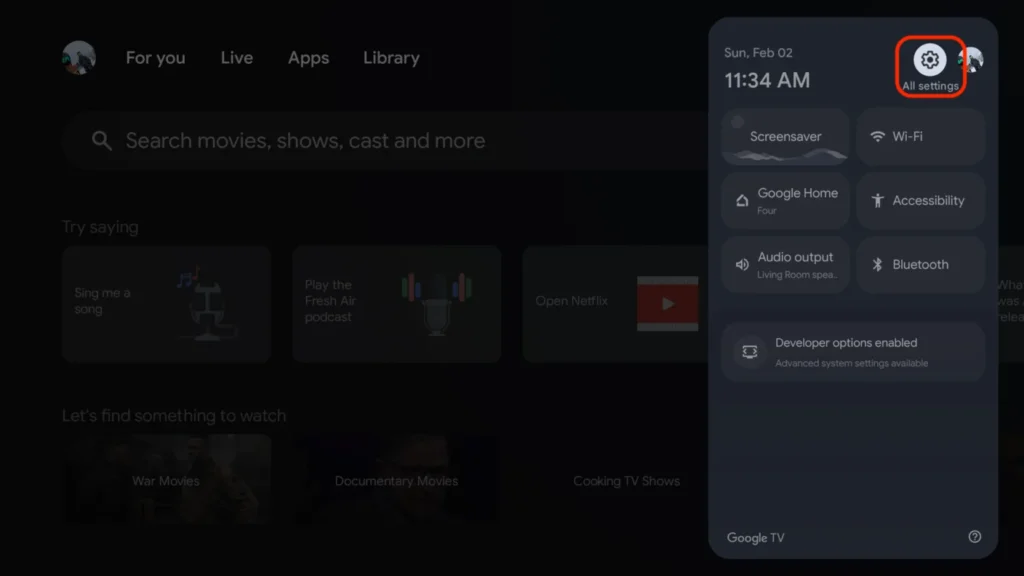
- Open the All Settings menu from the home screen.
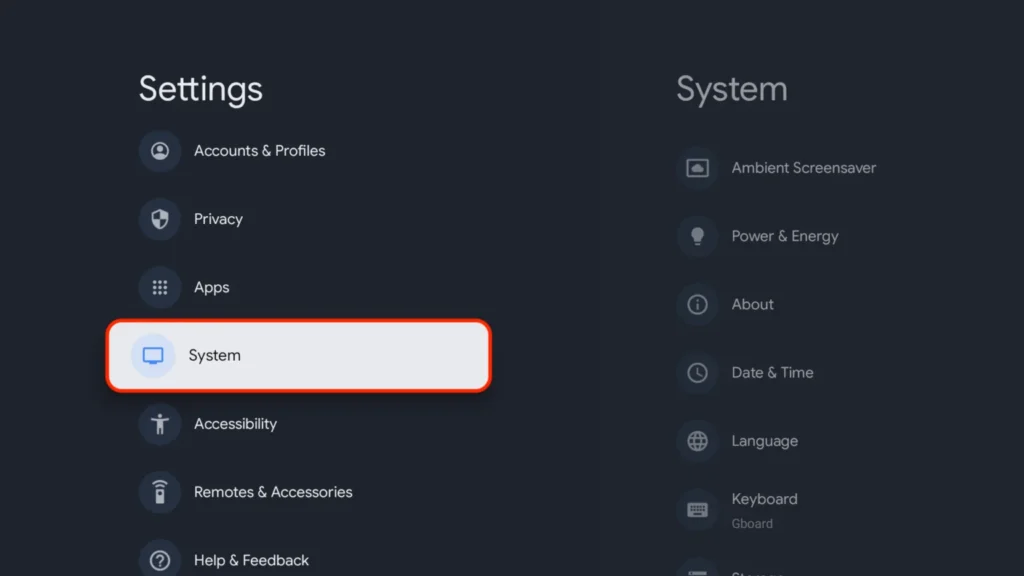
- Select System
- Select About
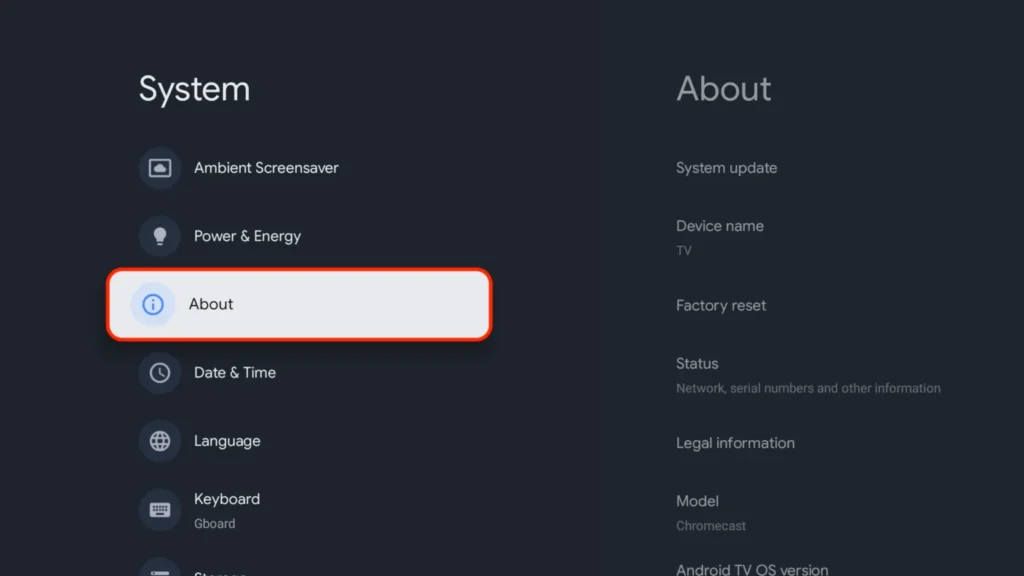
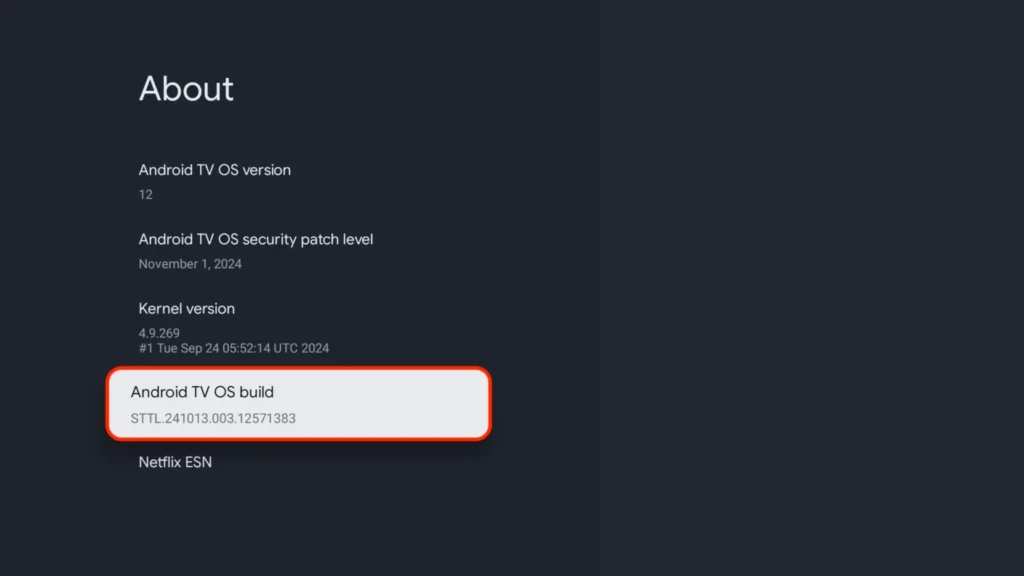
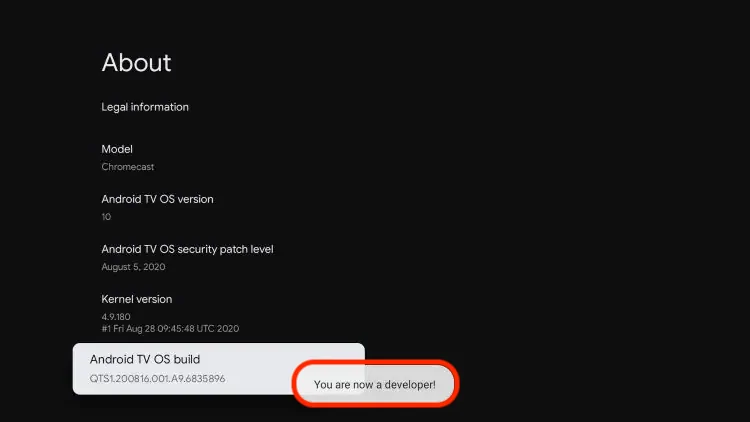
- You will now see ‘Android TV OS build‘ at the bottom. Click on it 7 times until it says “You are now a developer!” (this will allow you to allow/disallow unknown apps later)
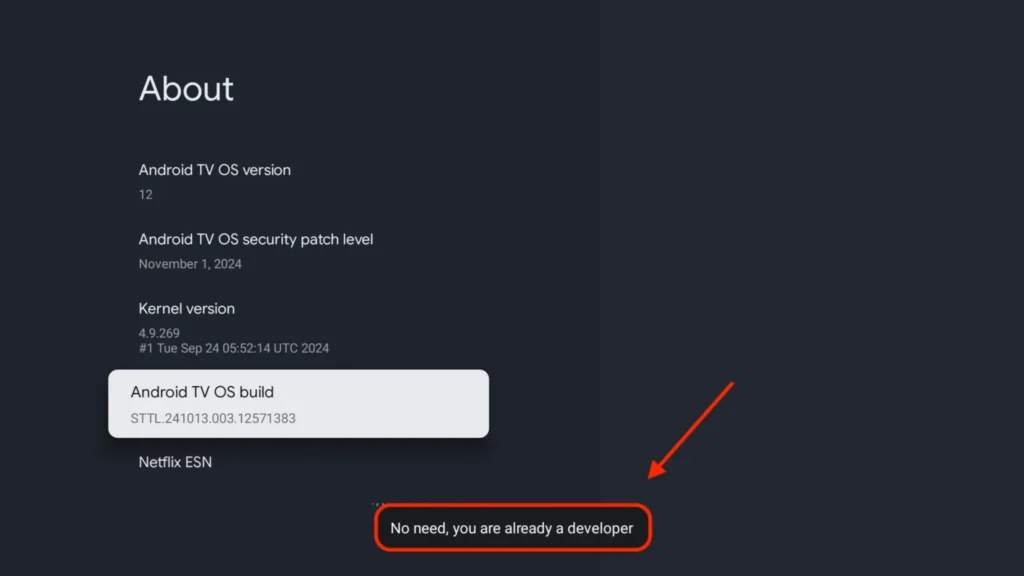
- if you see this message at the bottom saying “No need, you are already a developer”. So stop clicking then
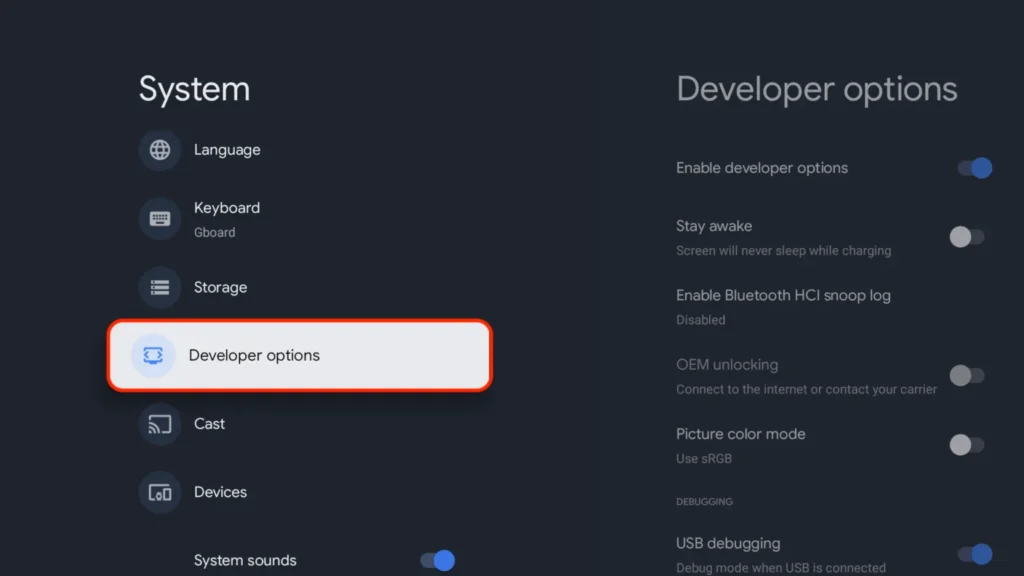
- Click back button on remote and Developer options will be enabled under System menu.
- Click back on your remote
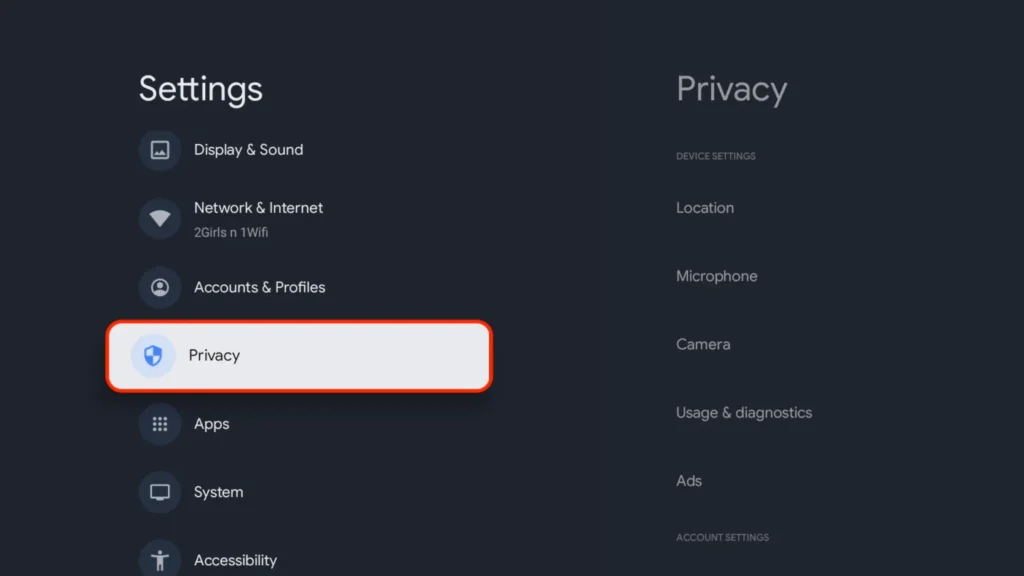
- Select Privacy under Settings menu.
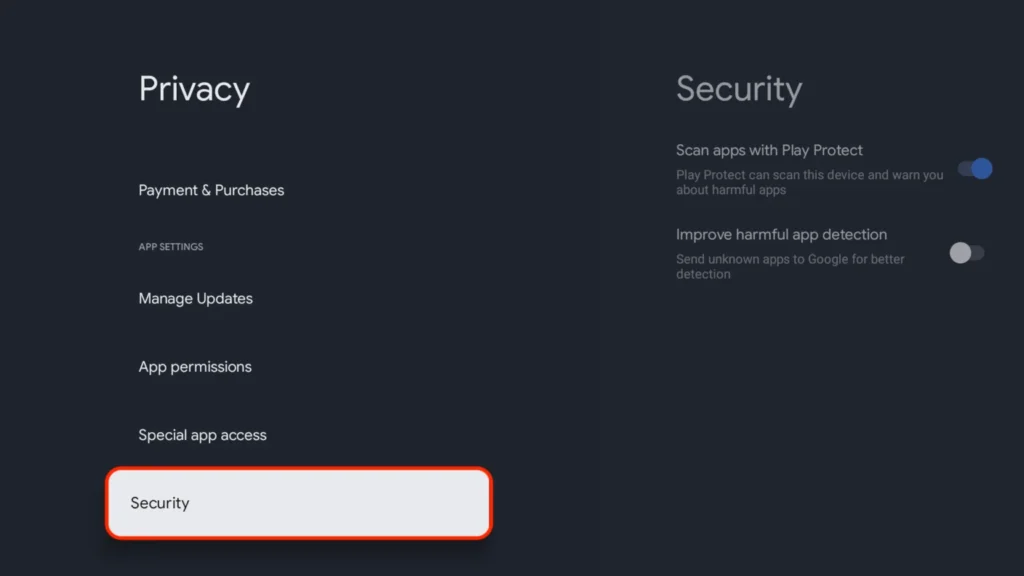
- Select Security under Privacy menu.
- Turn the toggles off for both Scan apps with Play Protect & Improve harmful app detection. This will allow us to install apps outside of the Google Play Store.
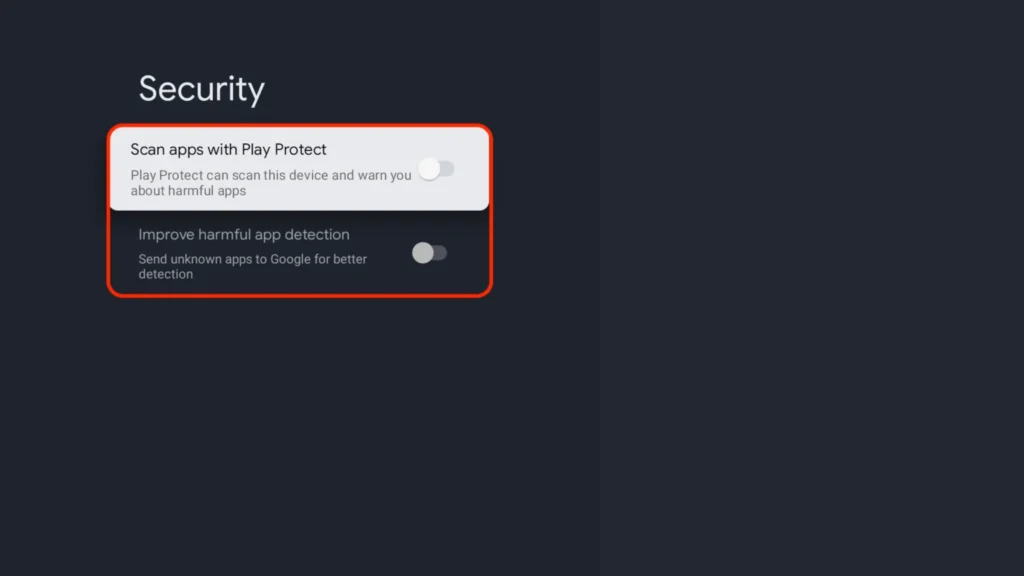
After disabling Play Protect, we can install the Downloader App, which lets you sideload apps and APKs on Google TV or Android TV.
- Click back on your remote and go to your Home Screen
- From the home screen, select Apps.
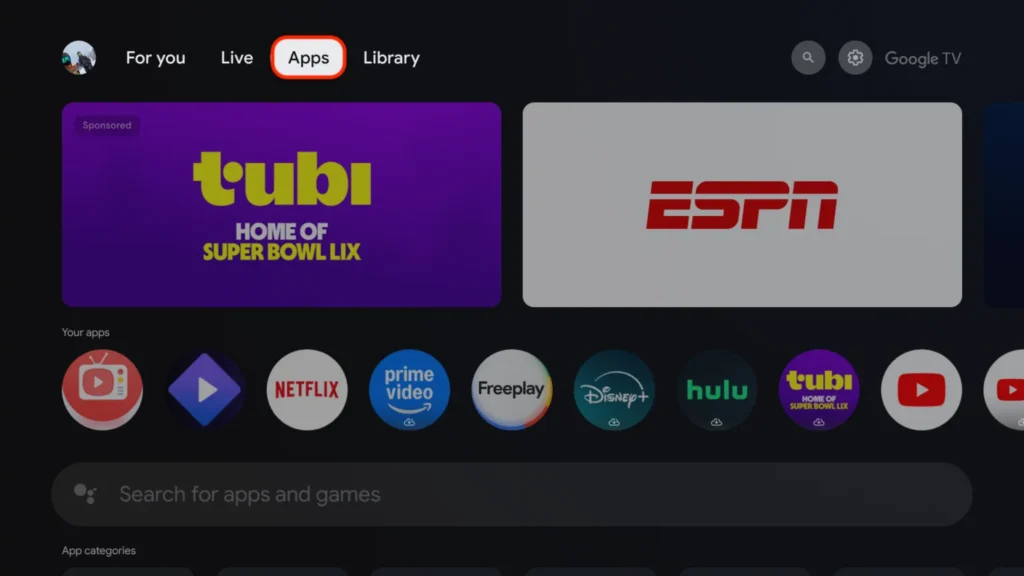
- Select the search bar.
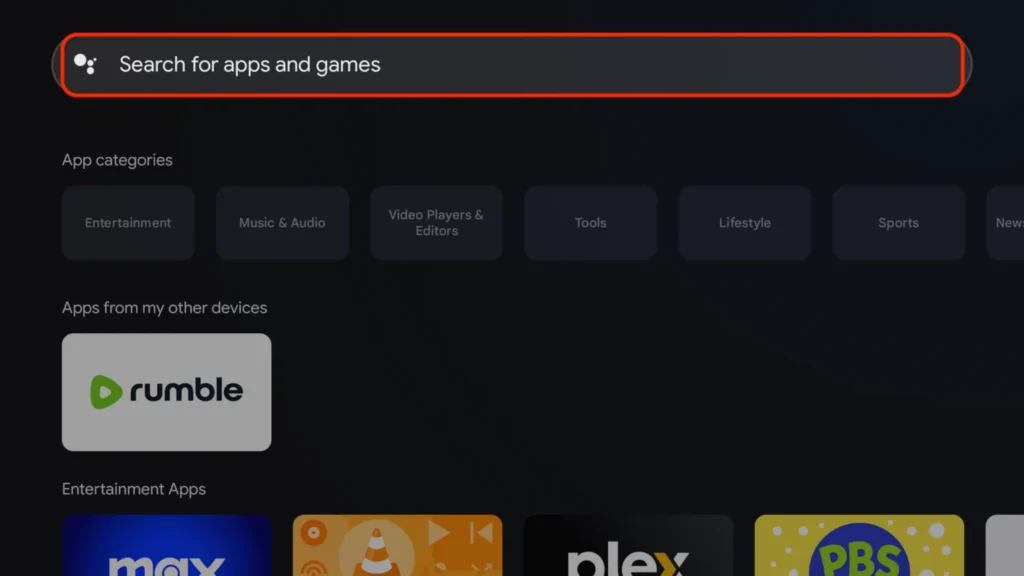
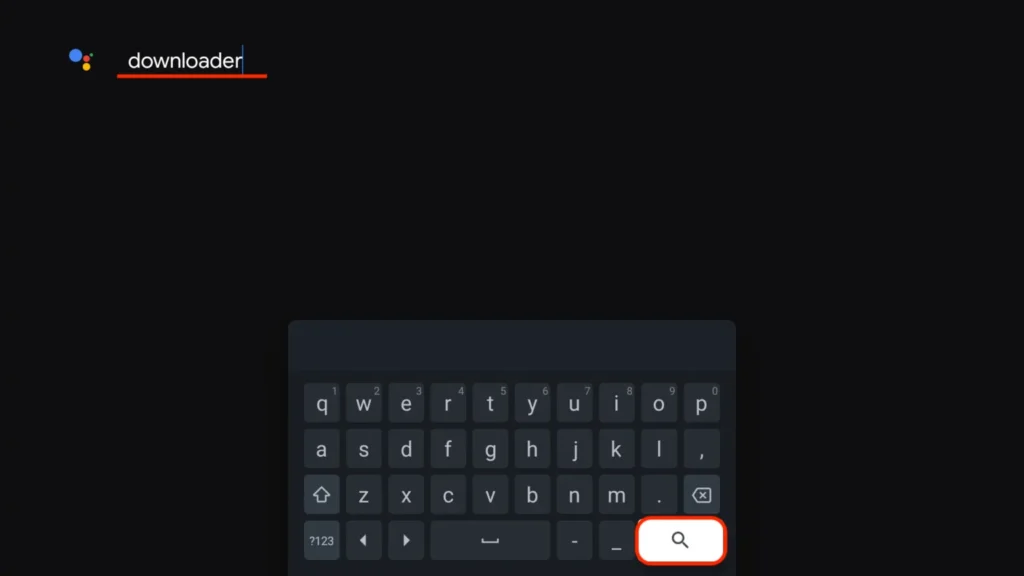
- Type Downloader and click the Search icon.
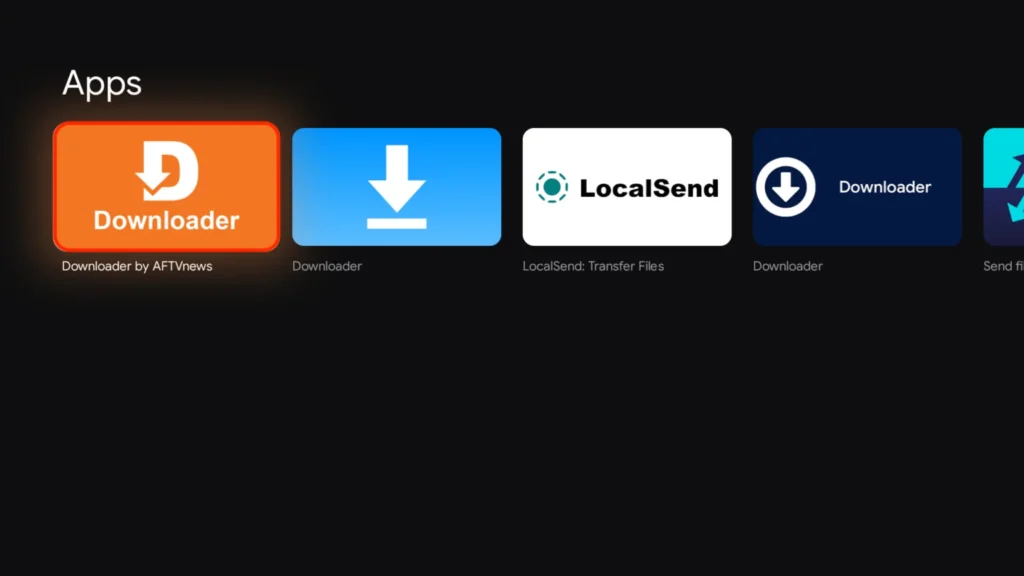
- Select the Downloader by AFTVnews App.
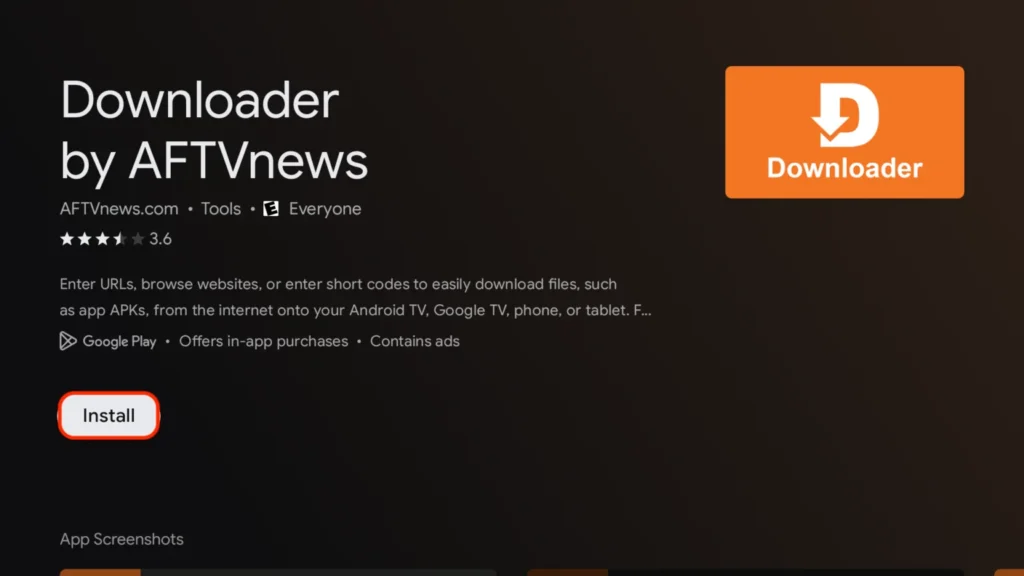
- Click Install.
- Click Open.
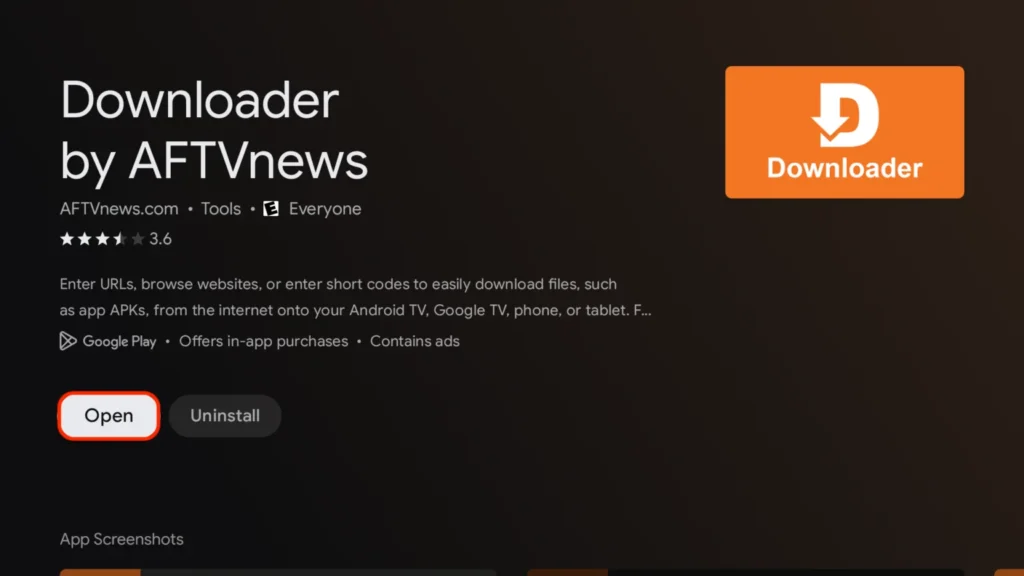
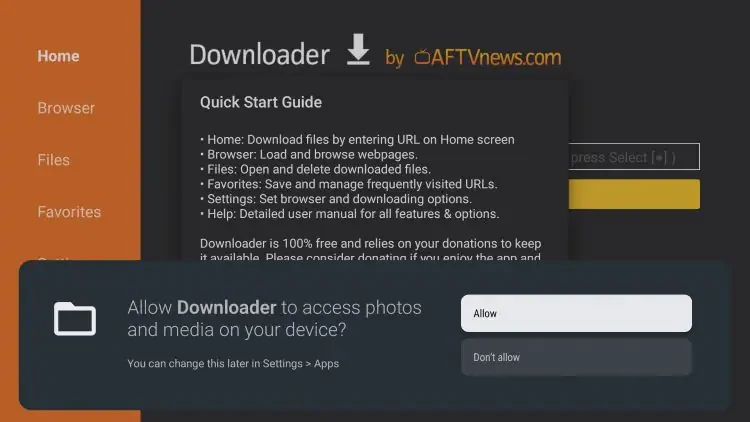
- Select Allow when asked to give Downloader access to files (necessary for it to install APKs)
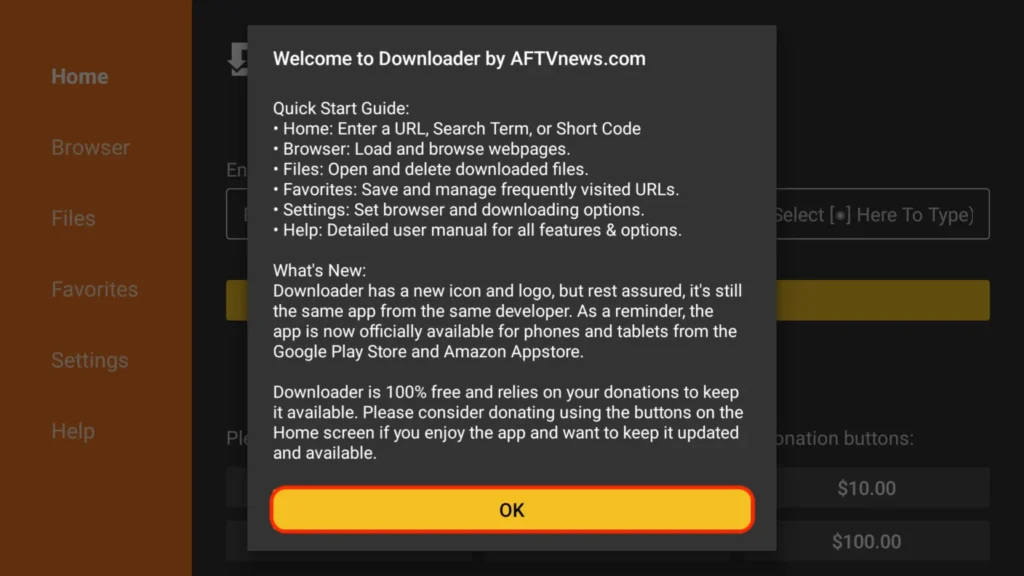
- Select OK
- The first time you try and download something with Downloader it will give you a settings warning your file will try to install but will not be allowed because of unknown apps being blocked. Just click on Settings
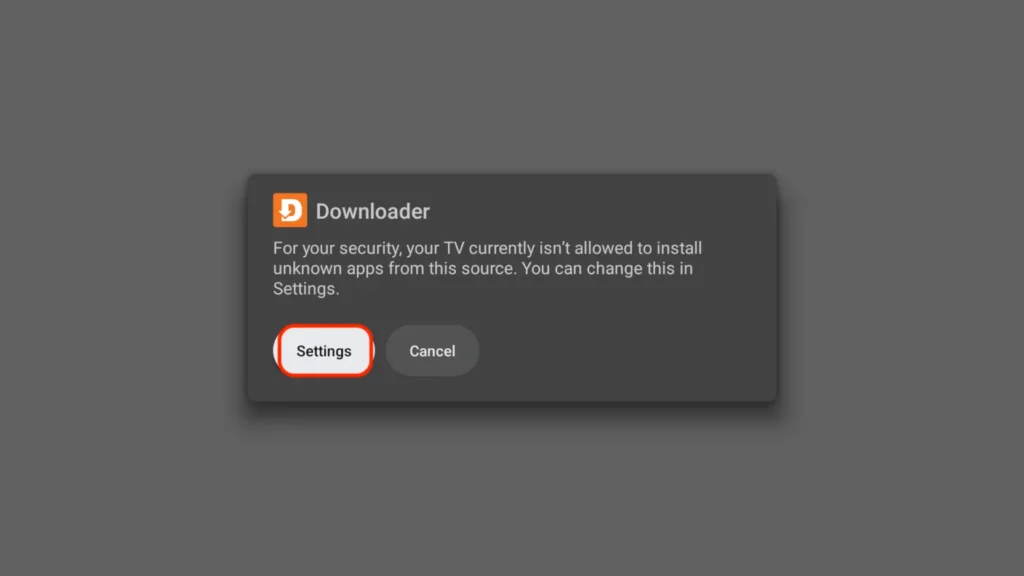
- Click on Downloader toggle so it turns from Off to On. You will never be asked to do this again when you use the Downloader app now that it is turned on.
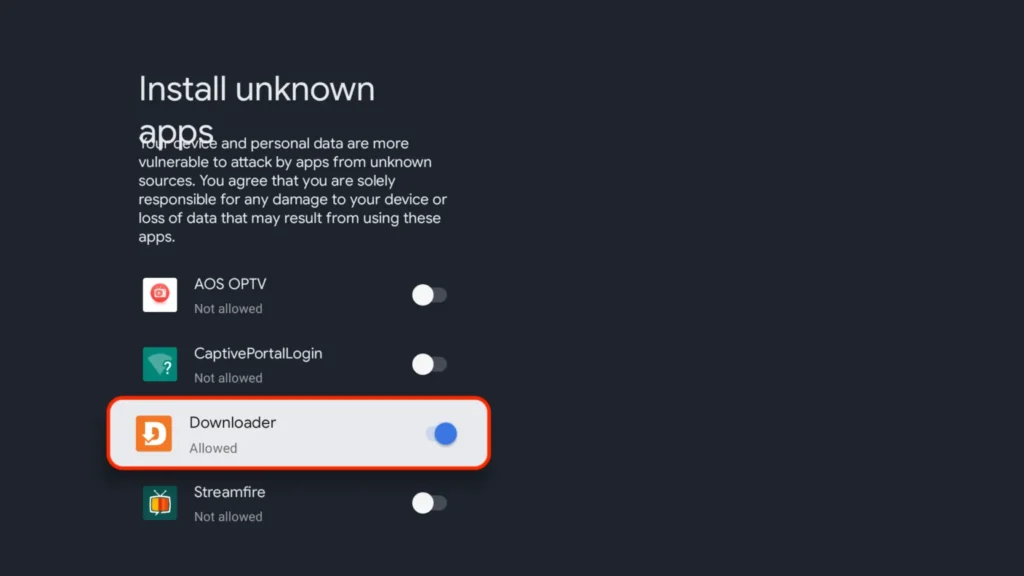
- Downloader is now ready and setup
Part 2: Installation Steps
To download Filmplus using Downloader, follow these steps:
- go to your Home Screen
- From the home screen, select Apps.
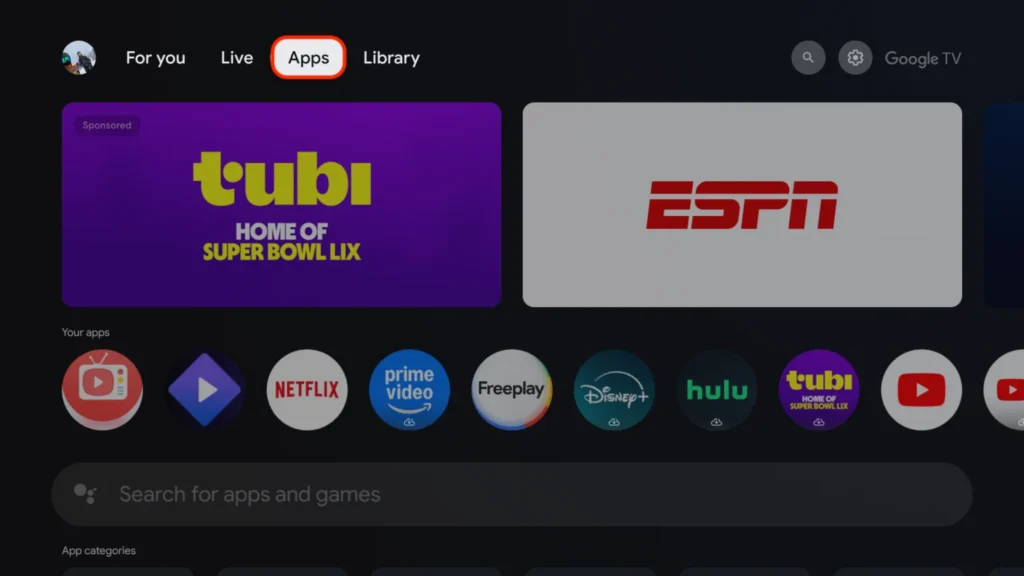
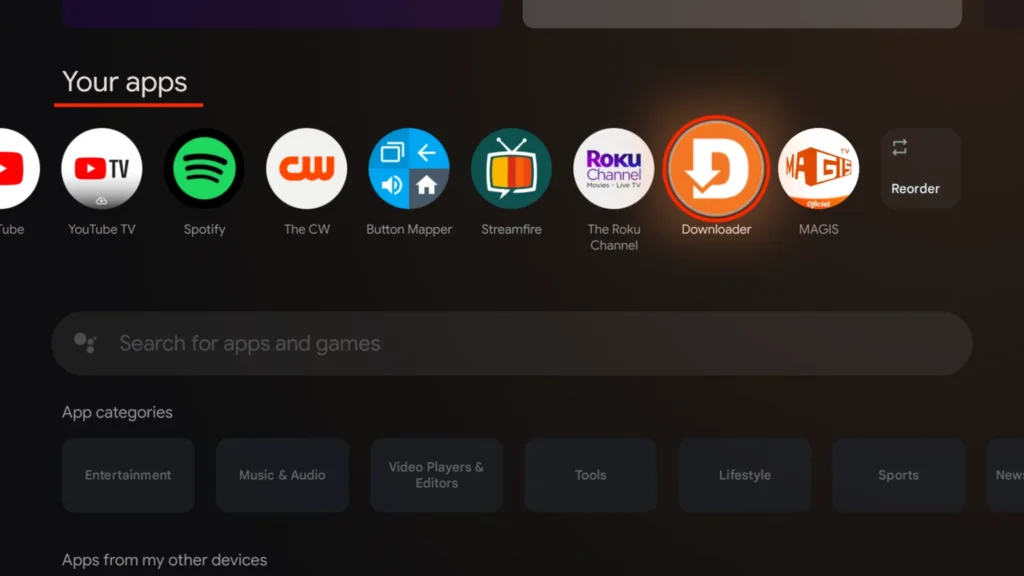
- Click the Downloader app icon under Your apps to open.
- Use your remote to highlight the Enter a URL or Search Term: section
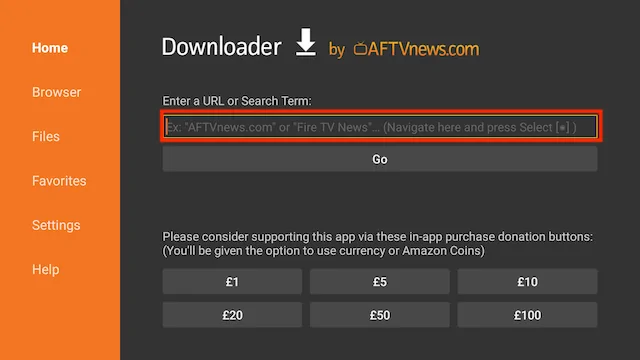
- Enter the following code
639346(image shows older short code) and then click Go
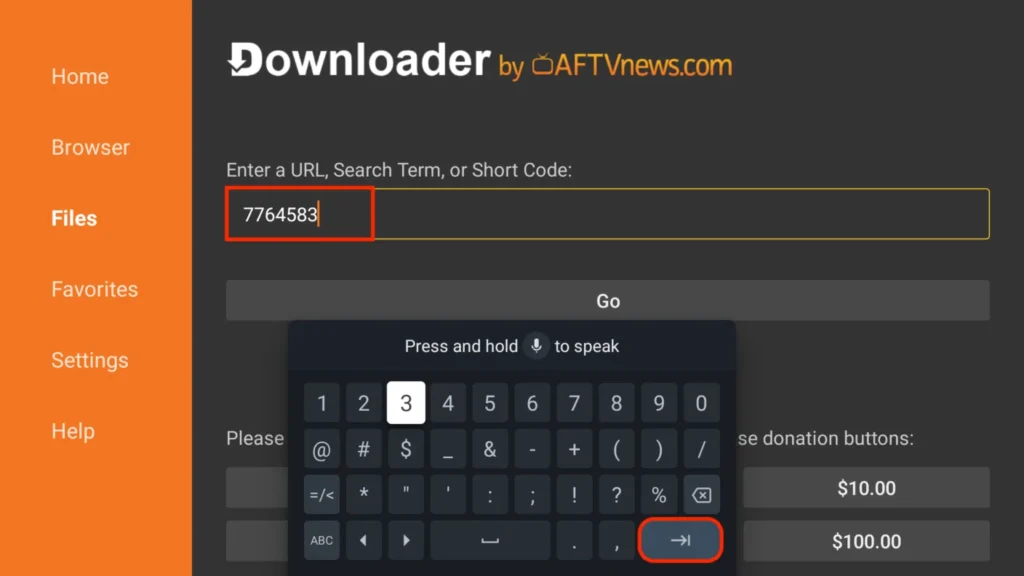
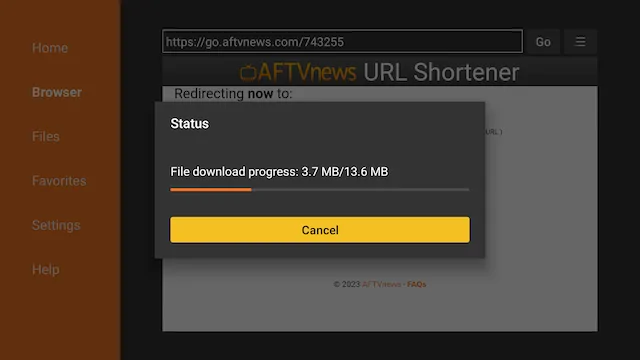
- Scroll down and click the Download Button
- The file will start to download
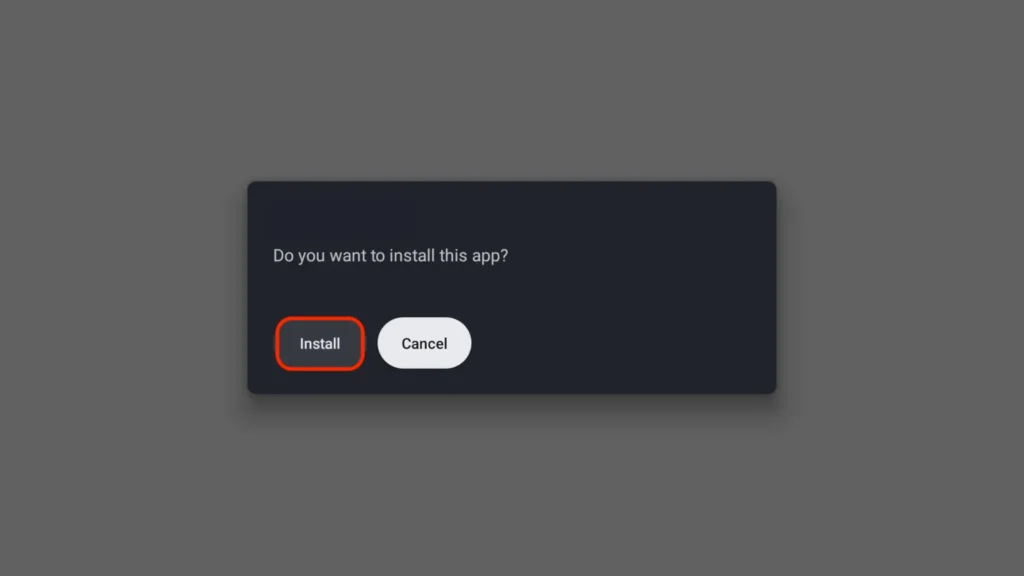
- You will be asked if you want to install it. Select INSTALL
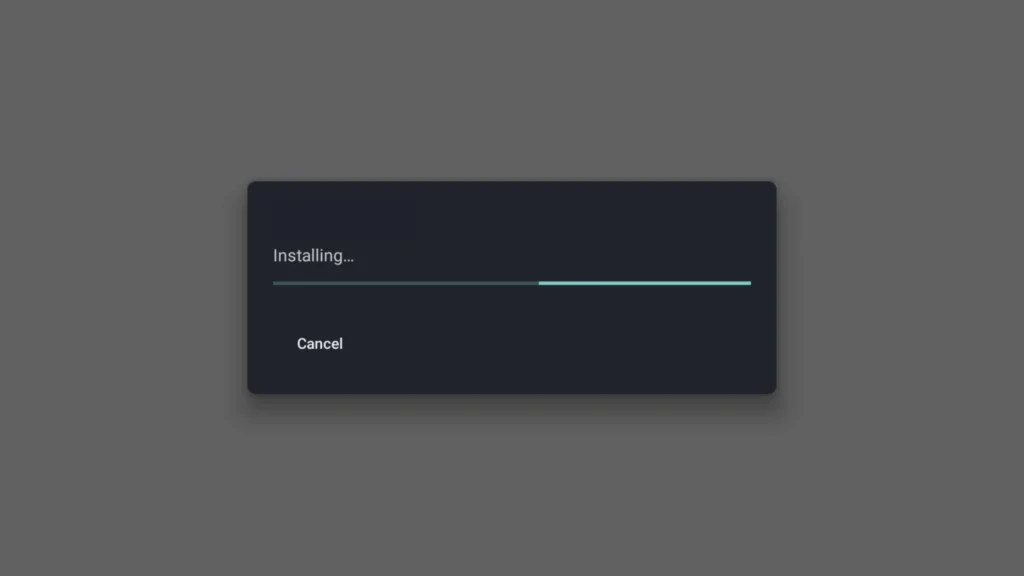
- Now the installation will start automatically.
- Select Done (we are going to delete the installation file to save space on your Google TV or Android TV)
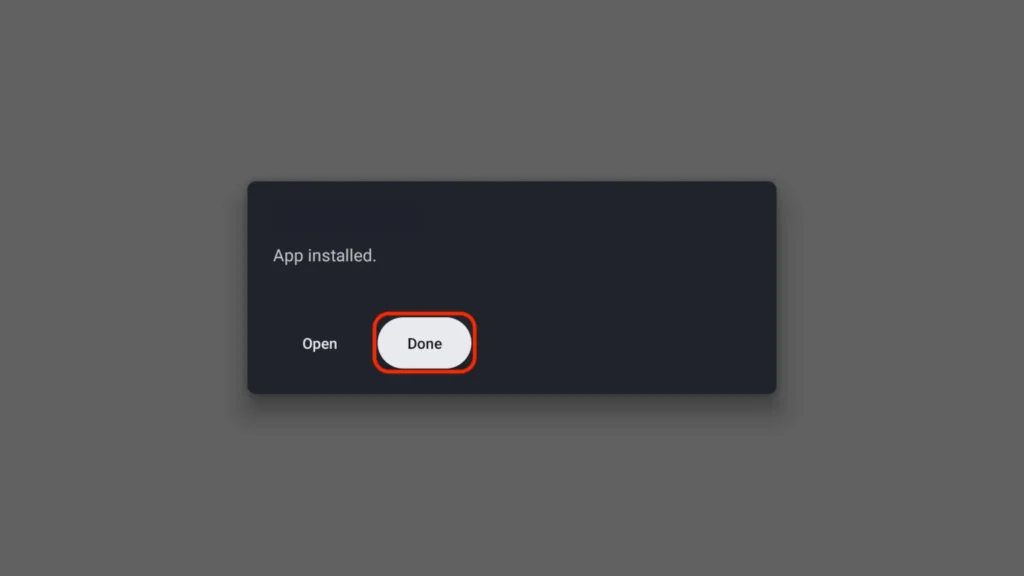
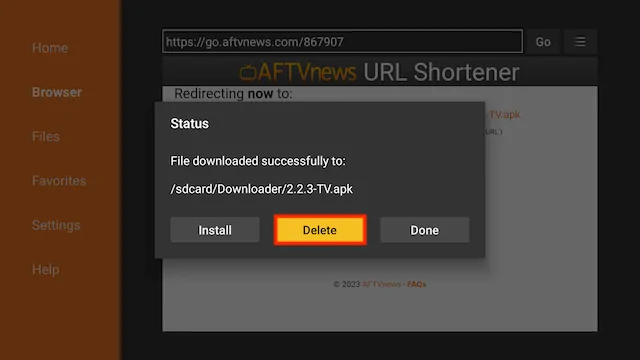
- Select Delete
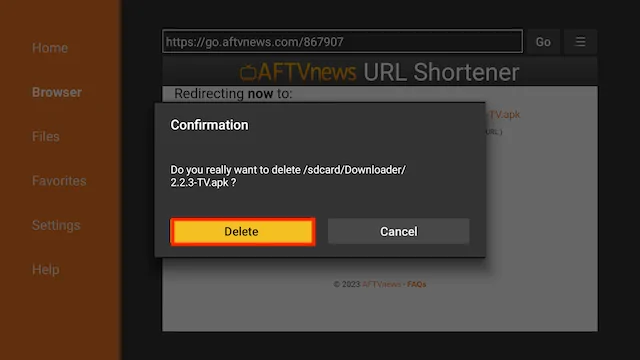
- Select Delete again
- Go back to your home screen
- Select the Apps section
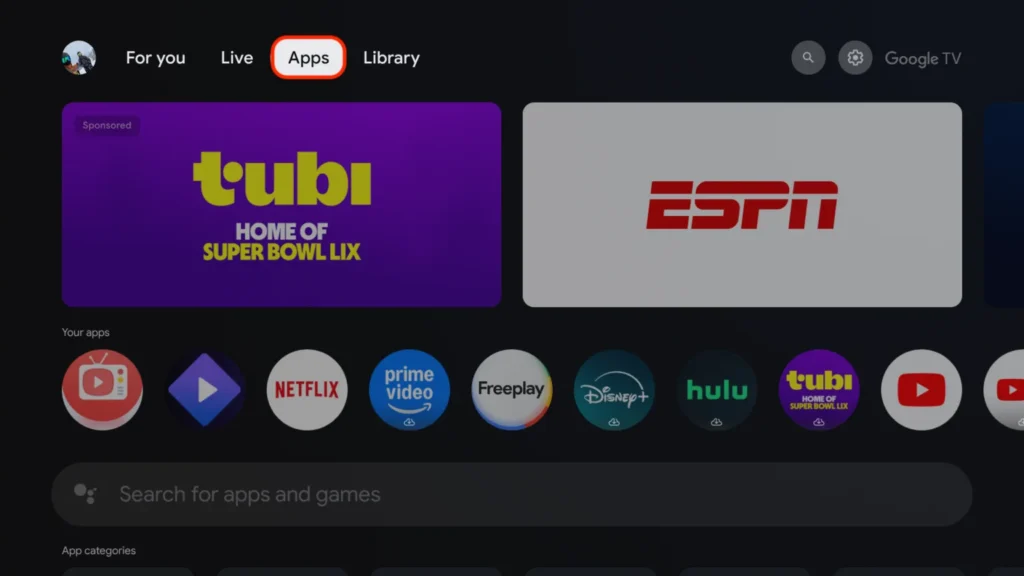
- Scroll down to Your apps
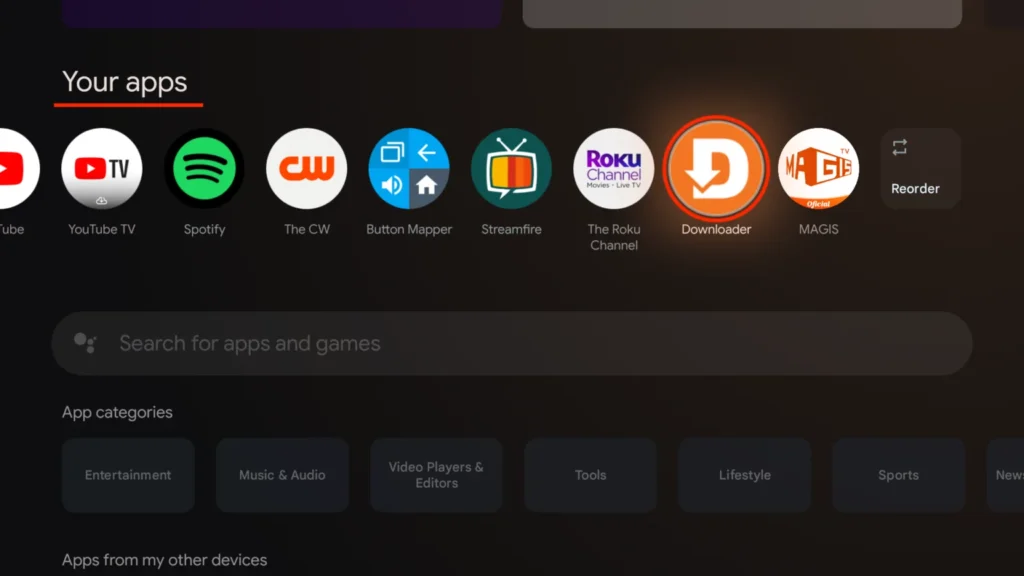
- You have installed the Filmplus app and sideloaded your device!
- Open your newly installed app from the Your apps screen!
- Filmplus will be located at the end (Scroll to the right under your apps).
Legal Copyright Disclaimer: As has been noted, streaming copyrighted content is unlawful and could get you into legal trouble. On account of this, we do not condone the streaming of copyrighted content. Therefore, check your local laws for streaming content online before doing so. Consequently, the information on this website is for general information and educational purposes only.